Add subtitles to video with AI: the complete guide
Your viewers are scrolling through social media without sound on.
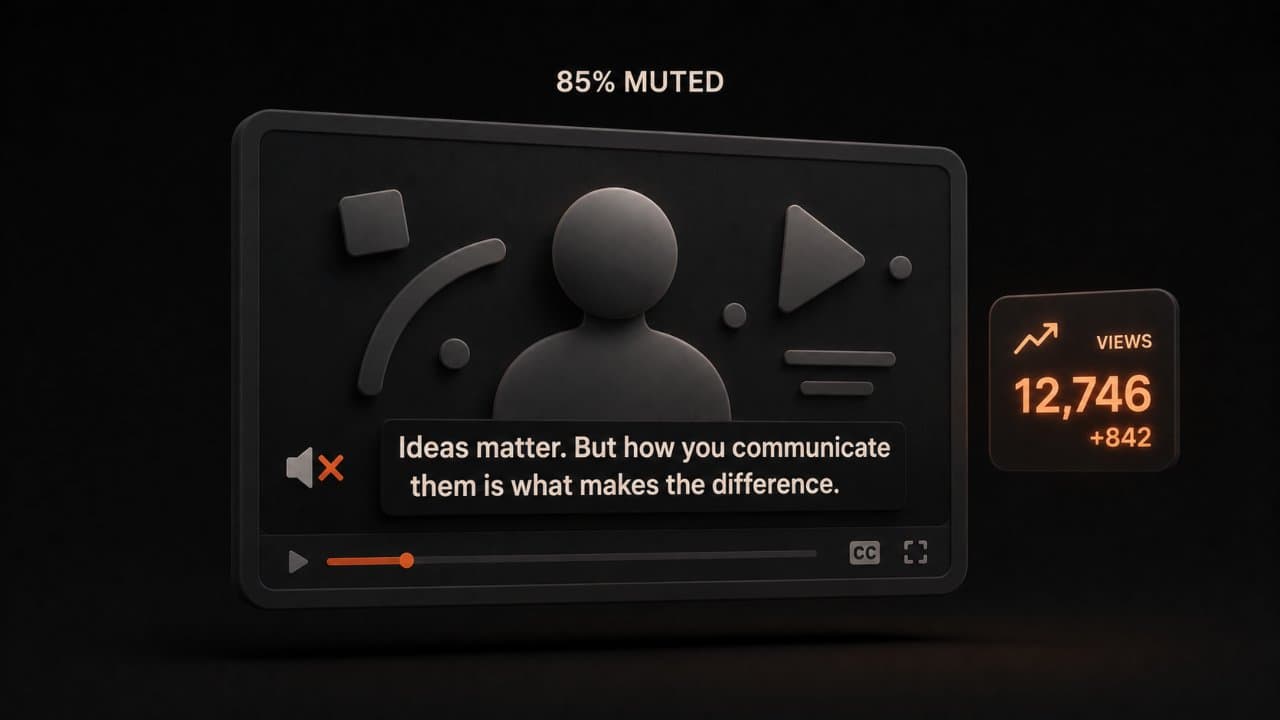
That's not a guess. According to Kapwing's research, 85% of social media videos are watched on mute. YouTube users skip boring content in seconds. And your best content might be invisible if it doesn't have captions.
Here's the thing: adding subtitles used to be a pain. You needed transcription services, manual editing, timing fixes, all of it. Now? AI can do the heavy lifting in minutes.
In this guide, I'll show you exactly how to add subtitles to your videos using AI tools. We'll cover the best platforms, step-by-step instructions, styling tips, and everything else you need to know.
Why subtitles matter for video engagement
Let me hit you with some numbers first.
According to PLYMedia research cited by 3Play Media, videos with subtitles get watched 80% more to completion. That's not a small bump. That's a real difference in how many people see your message.
Captions increase engagement by 12%. More comments. More shares. More reach.
But there's more than just engagement. Subtitles are an accessibility feature. About 360 million people globally have hearing loss. Another 67.5% of YouTube views come from non-English speaking countries. Without captions, you're excluding a huge chunk of your audience.
Then there's SEO. Search engines can't watch videos. Google's bots can't hear what you're saying. But they can read text. When you add subtitles, you're giving Google a transcript to index. That means better rankings and more organic traffic. Our video SEO strategy guide breaks down exactly how captions and video work together to improve search rankings.
Let me be clear: subtitles aren't optional anymore. They're essential.
How AI tools add subtitles to video now
Five years ago, you had two choices: hire someone or spend hours doing it yourself.
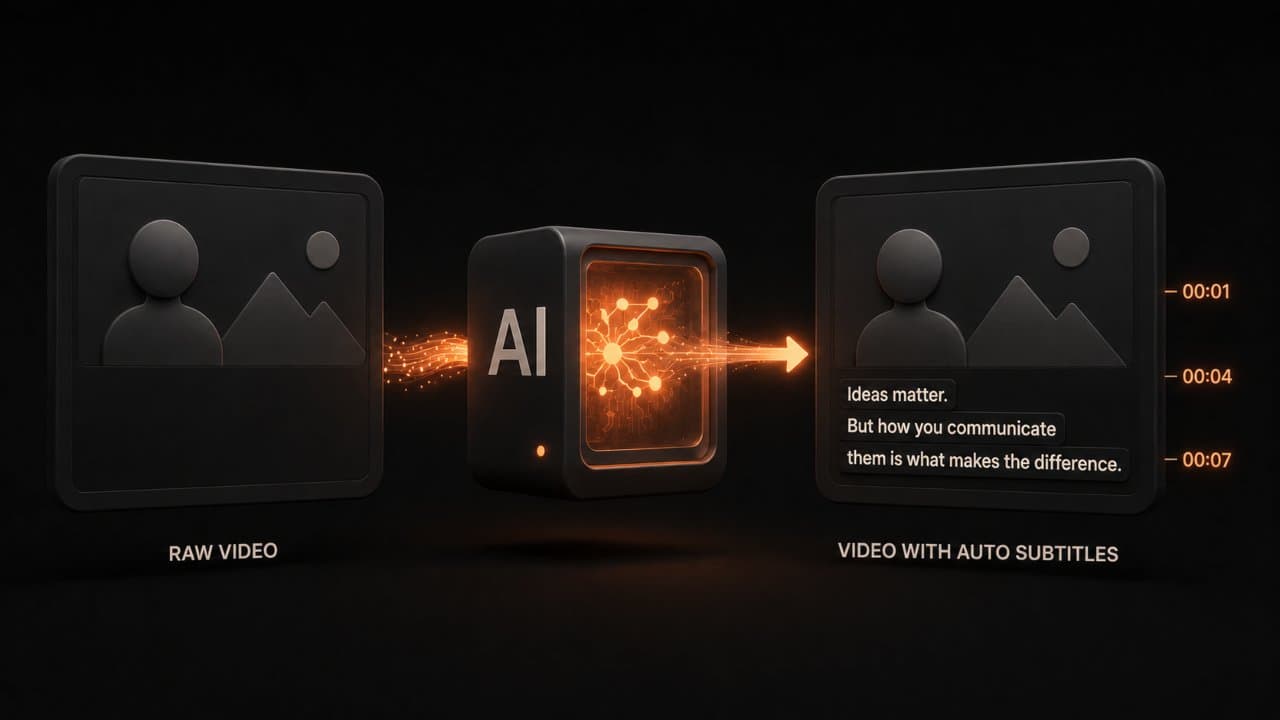
AI removed that bottleneck. Modern subtitle tools can transcribe your video with 99% accuracy. They handle multiple languages. They sync automatically. And they do it in minutes instead of hours.
The best part? You don't need to be technical. You upload a video, click a button, and the AI handles the rest. If you're new to AI video creation in general, our guide on making videos without editing skills covers the broader picture.
Top AI subtitle tools compared
Let's talk about the actual tools you can use right now.
DeepReel
DeepReel is built for creators who want simplicity and speed. Upload your video, select your language, and get subtitles in seconds.
The pricing is straightforward: $5 per month for 10 videos, $25 for 100 videos, or $30 for unlimited. No hidden fees. No complicated tiers.
I like DeepReel because it's designed for people who just want subtitles to work. You're not drowning in settings. You're not learning new software. You upload and download.
Descript
Descript is the heavy hitter if you also want to edit your video. It handles transcription beautifully and lets you edit your audio or video by editing the text. Perfect for podcasters and video creators who want one tool for everything.
The Creator plan starts at $144 per year, which is solid for the functionality you get.
Kapwing
Kapwing excels at making subtitles look professional. Their captions come with animations and styles built in. If you care about how your captions look, Kapwing is worth the investment.
Plan pricing starts at $16 per month for their pro features.
Veed.io
Veed.io is the language champion. It supports over 100 languages and translates subtitles instantly. If your audience is global, Veed wins on functionality.
The Basic Plan starts at about $18 per month.
Other solid options
Happy Scribe handles 119 languages and integrates with tons of platforms. Zubtitle specializes in short-form vertical video. Both are worth exploring depending on your needs.
Step-by-step: adding subtitles with DeepReel
Let me walk you through the actual process using DeepReel, since it's the most straightforward option.
Step 1: Sign Up
Go to DeepReel's website and create an account. Free trial available. Choose your plan based on how many videos you edit per month.
Step 2: Upload Your Video
Click the upload button. Select your video file from your computer. DeepReel accepts most formats: MP4, MOV, AVI, WebM, and more.
File sizes up to 4GB work fine. The upload happens in the background while you wait.
Step 3: Select Your Language
Choose the language your video is in. English, Spanish, French, German, Mandarin, Japanese. DeepReel handles them all.
If your video has multiple languages, you'll need to process it separately for each one.
Step 4: Let AI Do Its Magic
Hit the "Generate Subtitles" button and wait. Most videos finish in 2-5 minutes depending on length.
The AI transcribes the entire video and syncs the subtitles automatically.
Step 5: Review and Edit
Check the generated subtitles. Fix any mistakes. Adjust timing if needed. The editor is intuitive. Click any line to edit it.
Step 6: Choose Your Style
Pick a subtitle style that matches your video. Color, font, position, background. Keep it readable. Keep it on brand.
Step 7: Download or Export
Export as SRT file, burned-in video, or as a caption file for YouTube. Choose what works for your workflow.
That's it. Seven simple steps. You're done.
Burned-in subtitles vs. SRT files
This confused me the first time, so let me break it down simply.
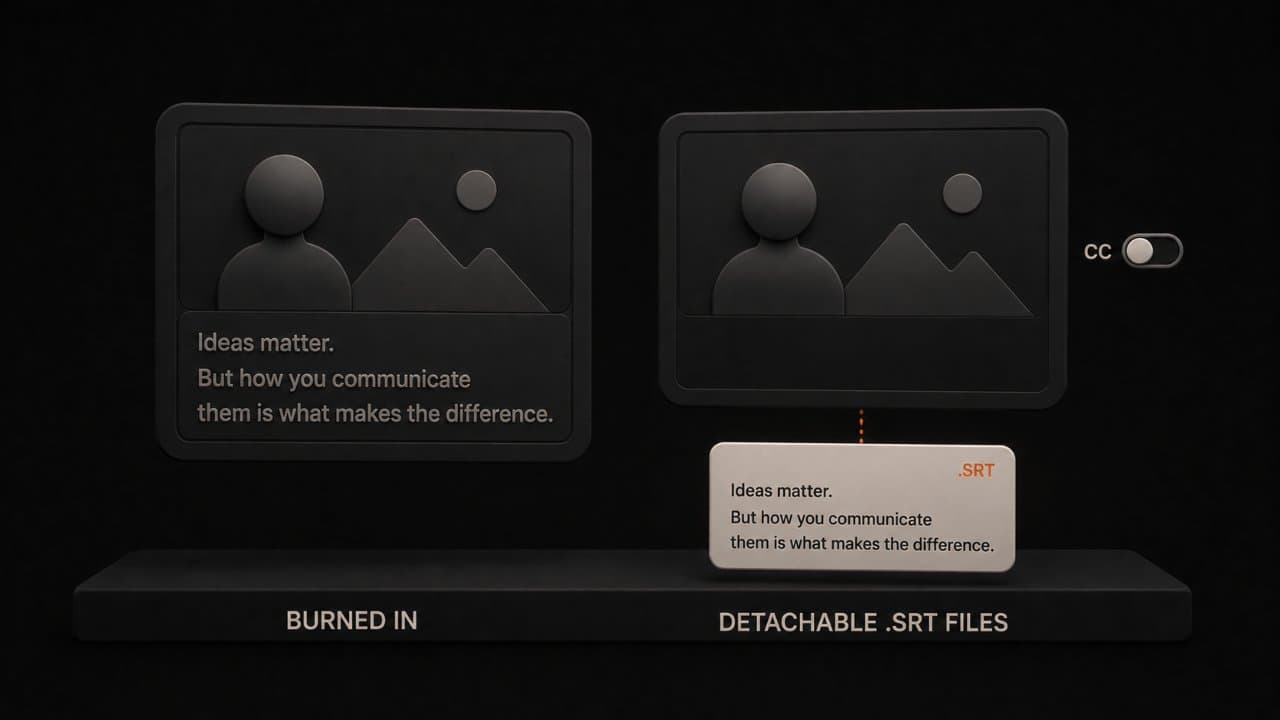
Burned-In Subtitles are permanently added to your video file. The text becomes part of the image. You can't remove or edit them after export. They work everywhere because they're just part of the video itself.
Use burned-in subtitles when you want permanent captions or need compatibility with any platform.
SRT Files are separate text files that sync with your video. YouTube reads them. Vimeo reads them. Video players can toggle subtitles on and off.
The advantage? Viewers control whether they see subtitles. The disadvantage? They only work on platforms that support SRT files.
My advice: if you're uploading to YouTube, Vimeo, or Wistia, use SRT files. If you're embedding on a website and want guaranteed captions, use burned-in.
How to style your captions for maximum engagement
Your subtitles are part of your brand. Style them right.
Keep Font Size Large
Make sure people can read your captions from any device. Mobile screens are small. Tiny text won't cut it.
If someone has to squint, they'll turn off the captions. That defeats the purpose.
Use High Contrast Colors
White text on dark background. Black text on white background. Yellow on dark blue. These work.
Avoid low-contrast combinations. Your captions should pop. They should be easy to read at a glance.
Position Matters
Bottom center is the standard for a reason. It's where viewers expect to see captions. Don't get creative here.
For vertical video, consider adjusting position slightly to avoid blocking important content.
Keep Lines Short
Don't cram too much text on one line. Two or three words per line reads better than a full sentence.
Longer lines slow down reading and feel cluttered.
Match Your Brand
Your captions should feel like your channel. If your brand is bold and colorful, your captions should reflect that. If it's minimal and clean, keep captions simple.
Consistency matters. When everything feels connected, your content feels professional.
Going multilingual: subtitles in multiple languages
Here's what makes this worth doing: you can reach viewers in their native language.
Most AI tools can auto-translate captions. Upload your video once. Generate subtitles in English. Then translate to Spanish, French, Mandarin, whatever you need. If you want to go further and translate the entire video including voiceover, our guide on translating video to 30+ languages with AI covers that workflow.
Veed.io handles 100+ languages. DeepReel covers the major ones. You're not limited to English anymore.
Why do this? Non-English speakers make up the majority of YouTube views. Speaking someone's language builds trust and loyalty.
If global reach matters to you, multilingual subtitles are non-negotiable.
The SEO benefit of subtitles
This is the part most people miss. Subtitles improve your search rankings.
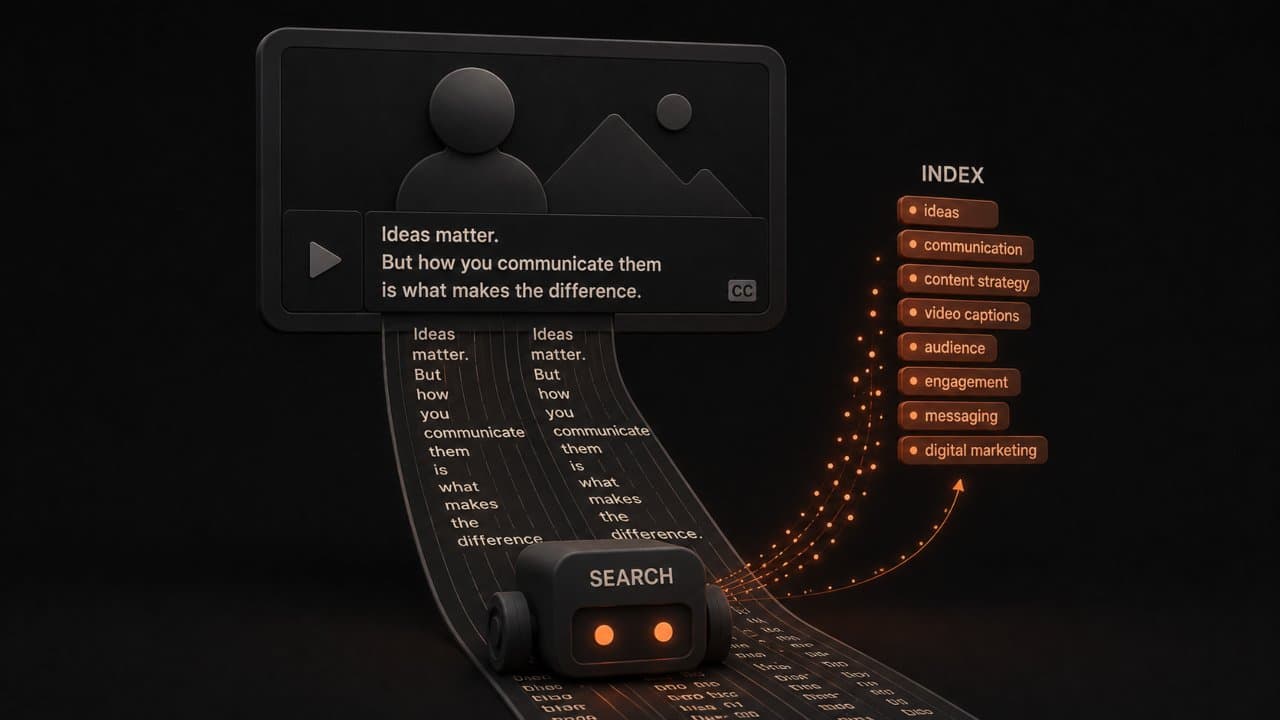
YouTube cannot watch your video. It reads text. When you upload an SRT file with accurate subtitles, YouTube indexes every word. That means your video can rank for keywords spoken in the video, not just keywords in the title and description.
According to 3Play Media, videos with closed captions get 7.3% more views on average. The SEO boost compounds over time as YouTube's algorithm favors videos with higher engagement metrics.
Google also surfaces video results in standard search. Videos with accurate captions appear more often in these results because Google can understand the content better.
Here is a practical example. You publish a video about "how to create product demo videos." Without captions, YouTube only knows the title and description. With captions, YouTube knows every word you said in the video. If someone searches for a phrase you mentioned at the 3-minute mark, your video can still appear in results.
The process is simple. Generate your SRT file. Upload it alongside your video. YouTube handles the rest.
One more thing. Captions increase average watch time. Viewers who can read along are less likely to click away. Longer watch time signals quality to YouTube's algorithm. Higher quality signal means better recommendations. Better recommendations mean more views.
It is a compounding effect. Subtitles improve SEO, which improves views, which improves rankings, which improves views further.
Subtitles for different platforms
Each platform handles subtitles differently. Here is what you need to know. If you're managing content across multiple channels, our guide on AI video for social media managers covers platform-specific best practices beyond just captions.
YouTube: Upload SRT files directly. YouTube also auto-generates captions, but they are less accurate than AI tools. Always upload your own for better quality. YouTube supports multiple language tracks per video.
TikTok: Built-in auto-captions are decent but limited. For branded, styled captions, burn them into the video before uploading. TikTok does not support SRT uploads.
Instagram Reels: Same as TikTok. Burn captions into the video. Instagram's auto-captions exist but give you zero styling control.
LinkedIn: Supports SRT uploads. This is underused. Most LinkedIn videos have no captions. Adding them makes your content stand out in the feed, especially since LinkedIn's app defaults to muted autoplay.
Facebook: Supports SRT uploads and auto-captions. Upload your own for accuracy. Facebook videos with captions see 12% higher engagement according to Digiday.
Websites: Use a video player that supports caption tracks (most modern players do). Upload the SRT file alongside your video embed.
Common mistakes people make with AI subtitles
Let me save you from the pitfalls I've seen.
Mistake 1: Not Reviewing the AI Output
AI is 99% accurate, but 1% can be wrong. A word gets transcribed incorrectly. A name is misspelled. Always review before you upload.
Spend five minutes checking. It's worth it.
Mistake 2: Ignoring Accessibility Standards
Just adding subtitles isn't enough. They need to be clear, properly timed, and synchronized with audio cues.
If there's background music or sound effects, mention them in brackets. [upbeat music] or [door creaks]. This helps deaf viewers understand the full context.
Mistake 3: Using Auto-Captions Without Customization
YouTube and TikTok both generate captions automatically. But they're often wrong and always look generic.
AI tools give you control and accuracy. Use them instead.
Mistake 4: Forgetting to Optimize for YouTube
Upload your SRT file to YouTube alongside your video. YouTube will serve the captions to viewers. Better engagement. Better SEO. Better experience.
Mistake 5: Making Captions Too Small
I mentioned this earlier but it bears repeating. Small text gets ignored. Make your captions readable from any distance.
Should you invest in premium tools or stick with free?
Here's my honest take.
Free tools work. They really do. YouTube's auto-captions are better than they used to be. Kapwing's free tier is solid.
But free tools have limits. Accuracy isn't as high. Editing is clunkier. Support doesn't exist.
If subtitles are just an experiment, start free. But if you're serious about video content, a paid tool saves time and frustration.
DeepReel's $5/month tier is the smallest investment I'd recommend. You get reliability, accuracy, and customer support.
Think of it like this: would you rather spend 30 minutes editing captions manually or pay five dollars a month for AI to do it?
The math is simple.
SRT file format basics
Want to understand SRT files? It's simpler than you think.
An SRT file is just a text file with timing information. It looks like this:
1
00:00:00,000 --> 00:00:03,000
Your first subtitle here

2
00:00:03,500 --> 00:00:07,000
Your second subtitle here

3
00:00:07,500 --> 00:00:10,000
Your third subtitle here
Each entry has four parts:
- A number (sequence)
- Start time and end time
- The subtitle text
That's literally it. You don't need to manually create these. Your AI tool does it automatically.
But knowing the format helps if you ever need to edit an SRT file manually.
Wrap up
AI has made adding subtitles to your videos fast and painless.
You don't need expensive software, technical skills, or a hired editor.
You upload a video, click a button, wait a few minutes, and boom. Professional subtitles are ready. Subtitles are just one piece of the production puzzle. If you also need help with the script itself, our AI video script generator handles that step, and our AI scriptwriting guide covers how to write scripts that hook viewers from the start.
Your videos will get more views, stronger engagement, and reach people who couldn't watch before. That's what the data shows.
If you've been skipping subtitles because of the effort, that barrier is gone.
FAQ
Can AI tools handle accents and unclear audio?
Modern AI handles accents pretty well, but unclear audio is trickier. Background noise, heavy accents, or mumbling can reduce accuracy. If your audio is clean, you're looking at 95-99% accuracy. If it's messy, expect 85-95%. Always review the output.
Do I need to pay for subtitles in every language?
No. Most tools generate subtitles in your source language, then translate automatically. You typically pay one price for the original transcription. Translation is often included or costs extra depending on the tool.
Will subtitles hurt my video if someone watches with sound on?
Not at all. Viewers can toggle subtitles on or off (if you use SRT files). If you burn them in, they're always there, but they improve the experience rather than distract from it. People have gotten used to subtitles. Most don't mind them.
What types of videos benefit most from subtitles?
Every video benefits, but explainer videos and tutorial content see the biggest lift because viewers follow along with both audio and text. Educational content with captions has significantly higher completion rates.